
1. What is Wezy Customer Voting for JSM?
Wezy Customer Voting helps Jira Service Management teams collect customer demand and compare the requests customers care about. Agents choose which requests accept votes. Signed-in customers support those requests from their existing JSM portal. Agents review votes, represented organizations and demand scores in Jira.
Use voting as an input to prioritization alongside impact, effort and your team’s constraints. A vote does not promise delivery, change a request’s status or replace your triage process.
The supported scope is Jira Service Management Cloud, company-managed projects. Team-managed projects, Jira Data Center, Atlassian Government Cloud and Isolated Cloud are outside this scope. Customers must sign in: Wezy does not provide anonymous voting or a separate public request catalogue.
| Capability | Standard | Advanced |
|---|---|---|
| Vote, withdraw and optionally represent an organization | Yes | Included |
| Request enrollment, agent panel and project dashboard | Yes | Included |
| Demand score | Fixed formula | Configurable formula, explicitly activated |
| Type, status, minimum votes and minimum score filters | Yes | Included |
| Organization segments, weights and organization/segment filters | — | Yes |
| Trends, subject to coverage | 7 and 30 days | 7, 30 and 90 days; covered period comparisons |
| Analytical snapshot retention | 90 days | 365 days |
| CSV exports | Current metrics | Current metrics and available analytical dimensions |
| Administration, recovery and erasure | Subject to permissions | Same permissions |
Advanced includes Standard capabilities. Retention describes how long recorded snapshots are kept; a new installation does not immediately contain 90 or 365 days of history. Commercial edition availability will be confirmed in the Marketplace listing.
2. Quick start: your first customer vote
Use a demonstration request without confidential content and an authorized test customer account. Follow the roles in order, then return to the agent dashboard to check the result.
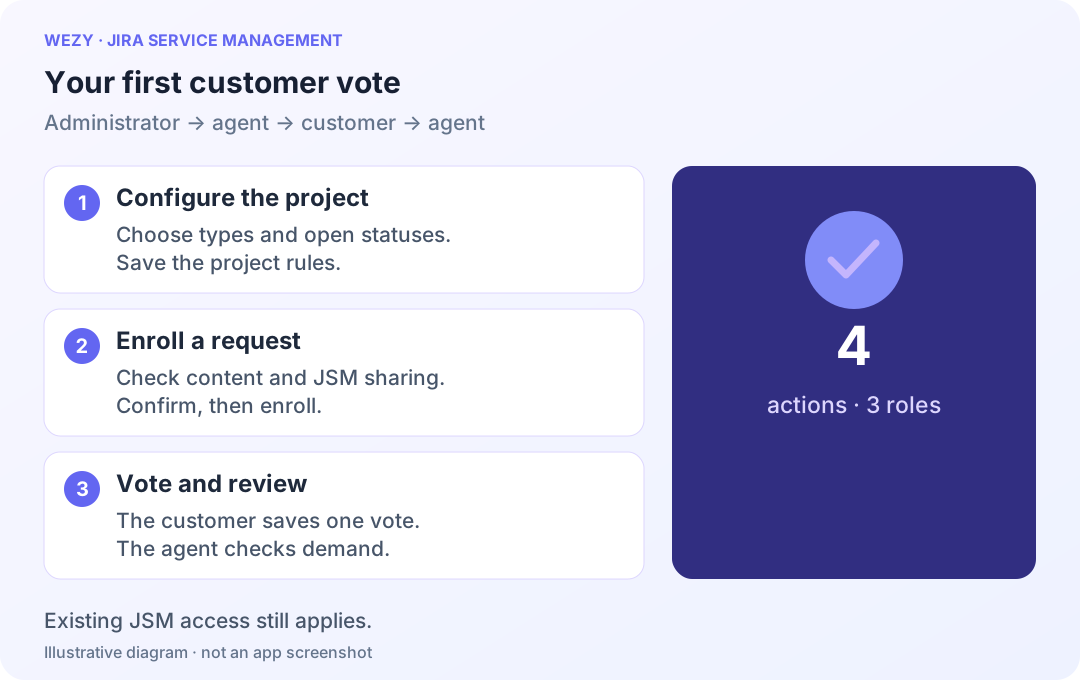
- Administrator: confirm the app is installed on a compatible JSM project.
- Open project settings → Wezy Customer Voting → Voting rules. Select allowed types, workflow stages and statuses, enable voting and save.
- Agent: review the request’s content and JSM sharing.
- Open Wezy Voting — Enrollment, confirm the content and sharing check, then enroll the request.
- Customer: sign in to the portal with an account that can access the request. Open it and vote.
- Wait for confirmation and check that the panel says you support the request.
- Agent: open Wezy Customer Demand on the issue and in the project to review the metrics.
- Customer: try withdrawing. Agent: refresh the metrics and check the result.
Language and examples: Wezy uses English by default and French for French-language Atlassian accounts. Screenshots were taken from the updated development app on 3–4 October 2026 using demonstration requests. Each caption identifies the UI language. Jira request titles, statuses and organization names keep their original language. Test badges identify development environments; examples are separate views, not one uninterrupted customer session.
3. Roles and permissions
Authorized site administrator: installs or manages the app and its Atlassian subscription. Erasing an account’s data across projects requires global Jira administration permission.
JSM project administrator: configures project voting and Advanced when available, and uses authorized administration, recovery and erasure tools for the project.
Authorized agent: enrolls or removes requests from voting, reads accessible metrics and represented organizations, uses the dashboard and prepares exports for accessible requests.
Signed-in portal customer: views accessible voting requests, adds or withdraws their own vote and optionally selects an eligible organization. The portal list does not expose a public list of voters or represented organizations.
Wezy checks JSM access. Enabling voting does not share a request or grant a new audience access to its content. Customers can therefore see different requests in the same portal.
4. Install the app and open its settings
The app was submitted to Atlassian on 3 October 2026. These installation steps apply once the approved listing is available. Screenshots illustrate the updated development app before launch.
- Sign in to Atlassian with an account authorized to install apps on the target site.
- From the official Wezy Customer Voting Marketplace listing, select your JSM site and an available edition.
- Review Atlassian’s displayed permissions and complete its installation and licensing flow.
- Open a company-managed JSM project, then settings → Wezy Customer Voting.
- Check that settings load. Installation-specific data initializes automatically; resolve an unavailable state before opening voting.
Repeat configuration for each project. Installing the app does not enable voting across every project.
5. Configure which requests can accept votes
Open project settings → Wezy Customer Voting. The settings have three tabs:
- Voting rules: requests, workflow stages, statuses and eligible organizations.
- Advanced scoring: importance of signals, segments and activation.
- Data and privacy: edition, retention, voting availability and erasure.
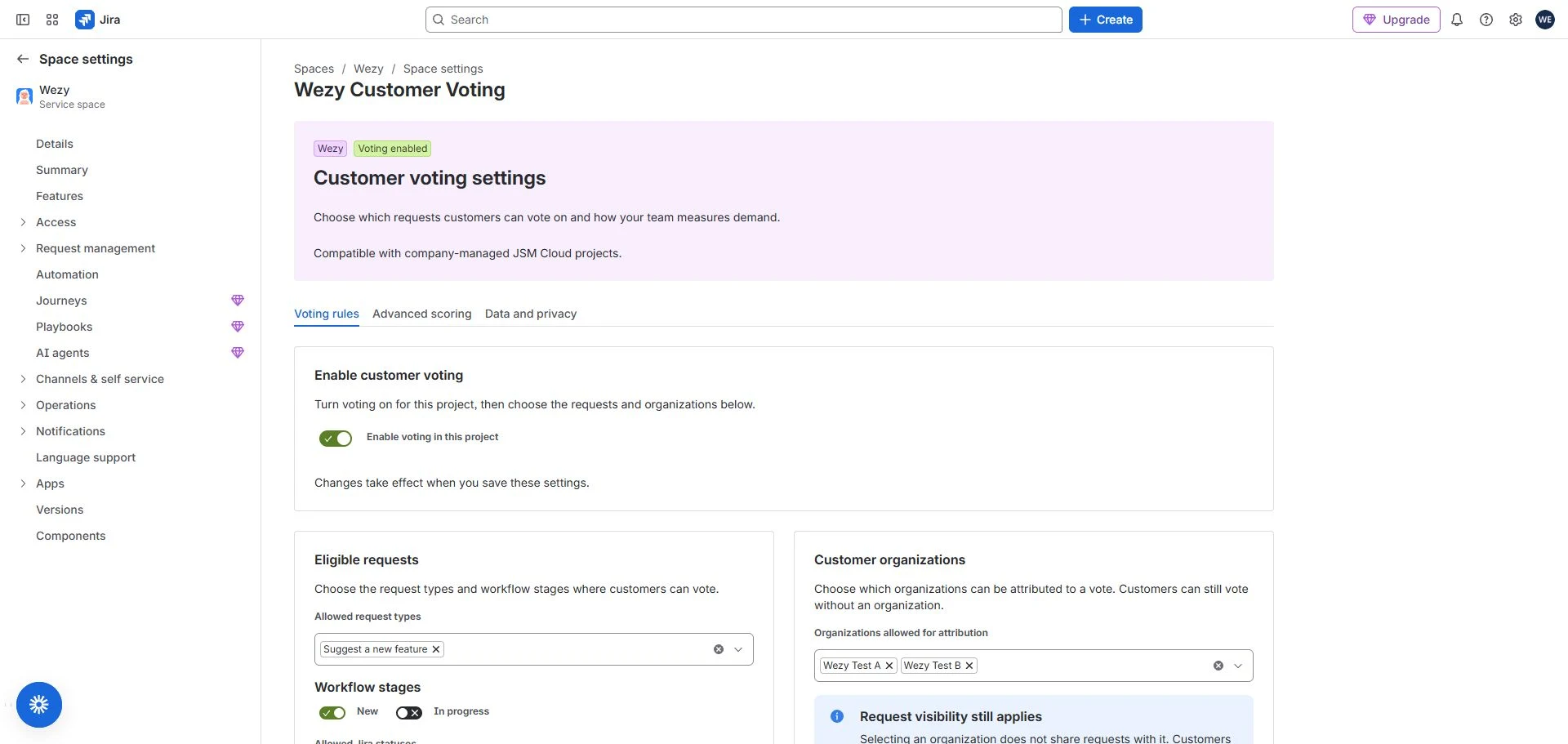
Step 1 — Enable voting and choose request types
Open Voting rules. Turn on Enable voting in this project. In Allowed request types, search for and select one or more portal request types. Selected items remain visible; remove an item to exclude it.
Step 2 — Select categories and exact Jira statuses
Under Workflow stages, turn on New, In progress, or both. Then search Allowed Jira statuses and select the exact statuses. The choices correspond to the open stages you selected. Completed statuses are excluded from new choices; previously saved or unavailable statuses can remain visible for review.
To enable the project, choose at least one request type, one open stage and one allowed status. A request must satisfy all three rules and be explicitly enrolled. Status names come from Jira and keep their original language.
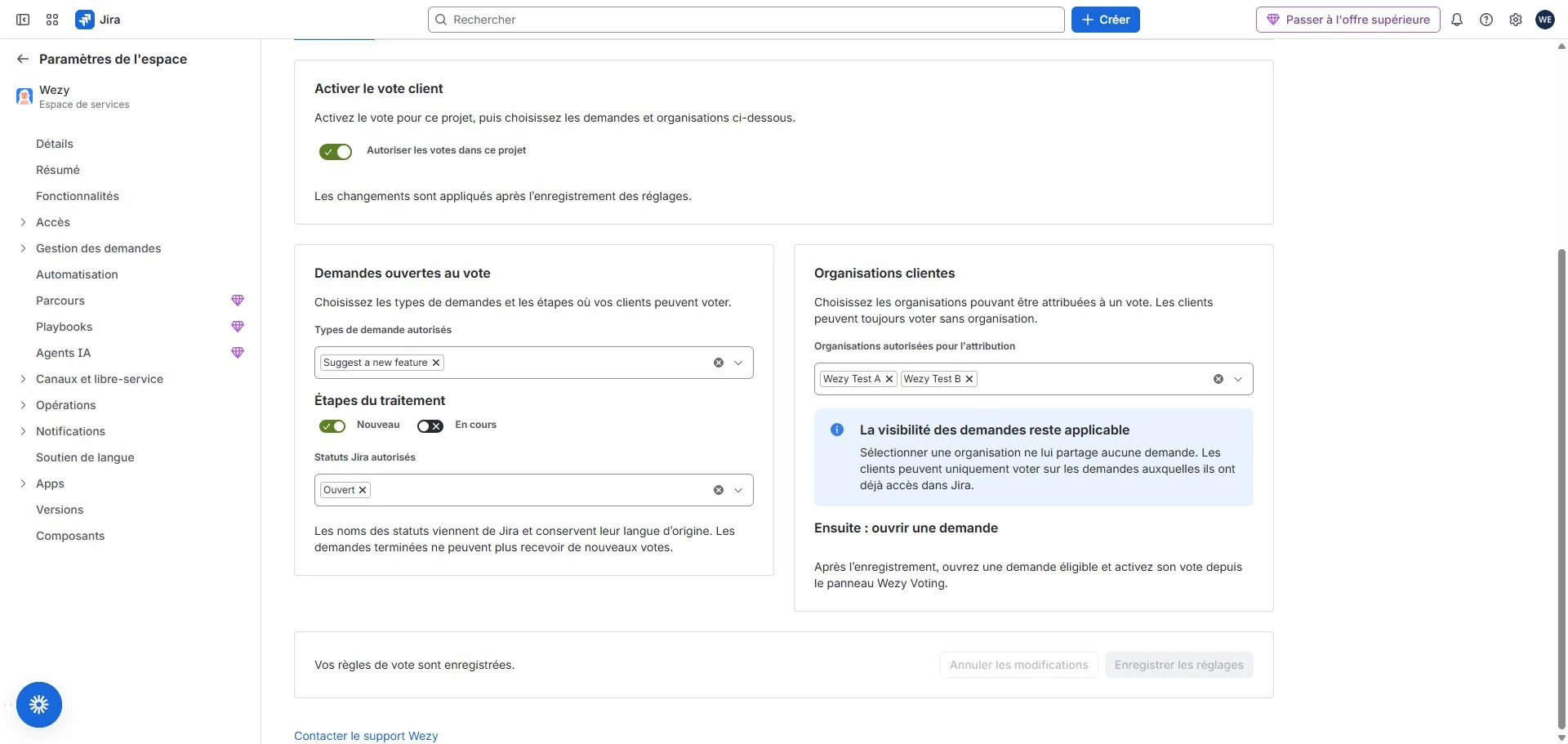
Completed requests cannot receive new votes. Recorded votes remain in history and can be withdrawn if the customer retains access.
Step 3 — Allow organization attribution and save
In Customer organizations → Organizations allowed for attribution, search for and select the organizations customers may represent. Choose Save settings and wait for confirmation. Changing a switch or selector only edits the draft. Discard changes restores saved rules; changing tabs keeps an unsaved draft. The heading badge describes saved voting availability. Attribution also requires service desk association and verifiable customer membership.
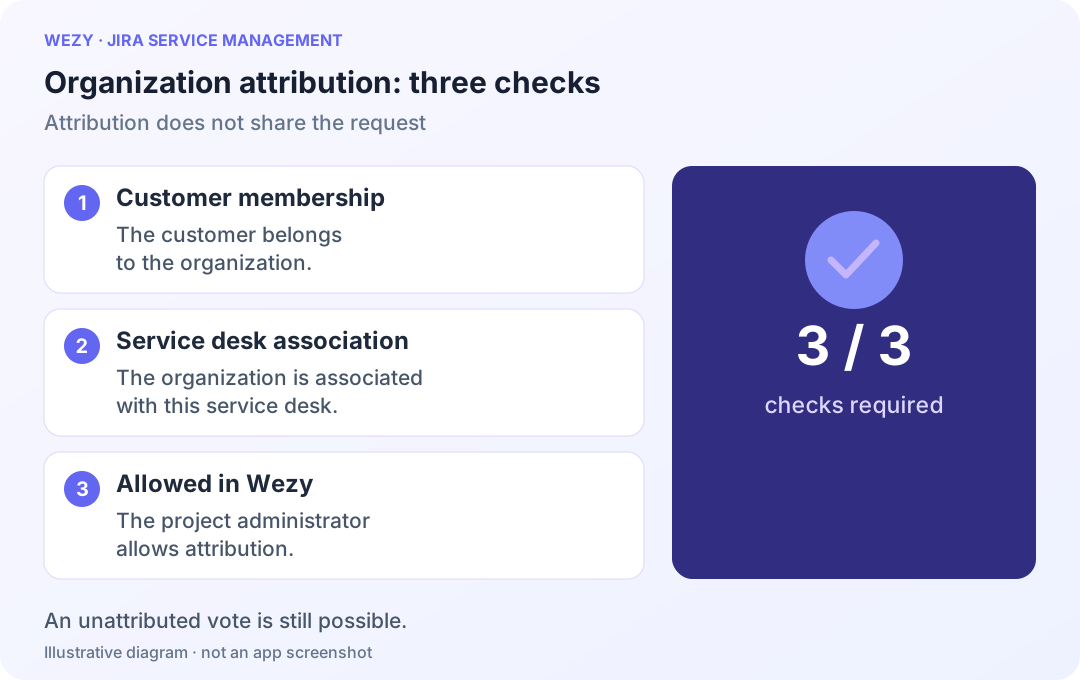
If the interface requires a permitted agent to authorize JSM organization reading, complete that authorization and retest the selector with a customer account. Review it if the agent’s permissions change.
This configuration does not share requests with organizations. Customers can vote without attribution. Test with an authorized account and, if possible, one without access: only the authorized account should see the request.
Saving project rules does not enroll every request. Agents enroll each request separately.
6. Enroll a request for customer voting
Step 1 — Check the content and sharing
Open the request as an agent. Review the summary, description and information customers can read. Check JSM participants and organization sharing. Confirm its type and status meet project rules.
Step 2 — Confirm the check and enroll
Open Wezy Voting — Enrollment. Select I have reviewed this request’s content and JSM sharing settings to confirm your check. Choose enroll (Enroll for voting) and wait for confirmation.
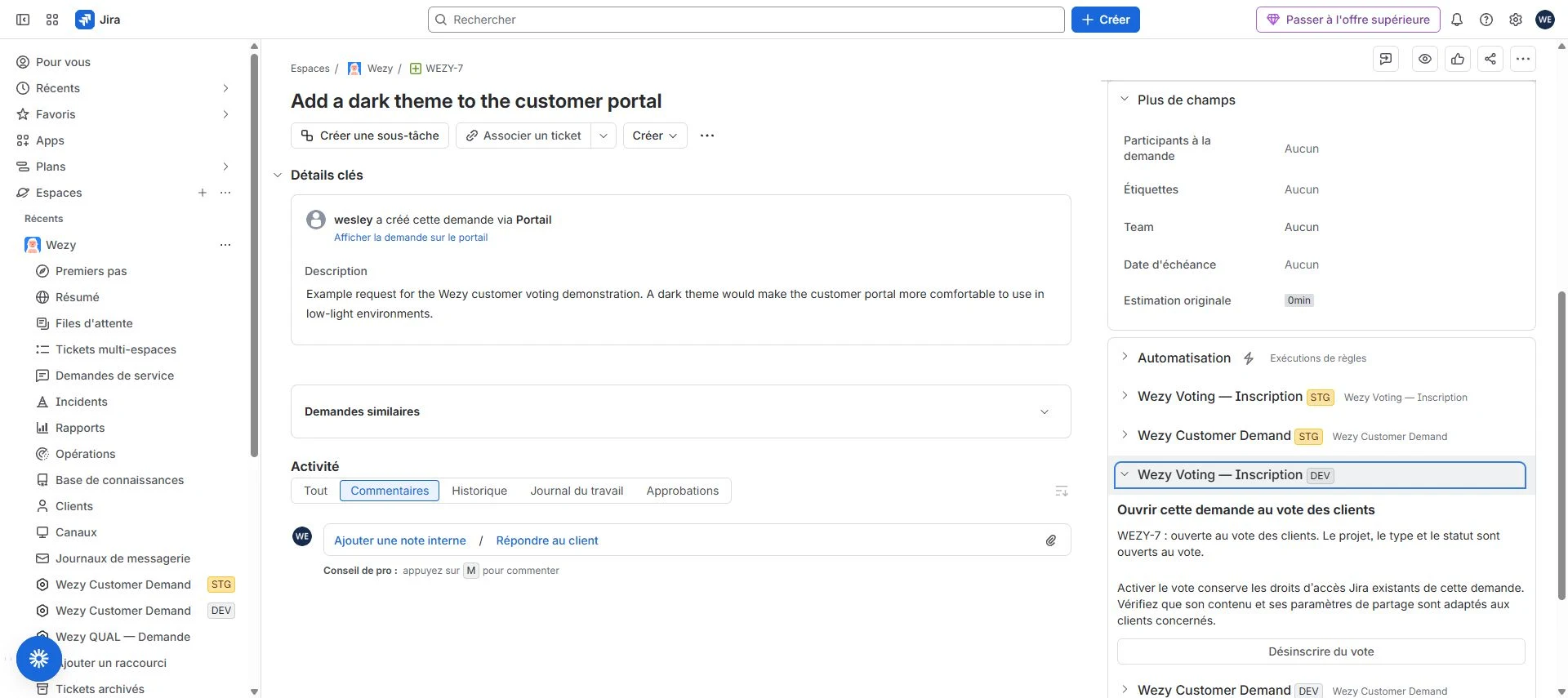
Step 3 — Verify from the customer’s account
Sign in to the portal as the intended customer and check the request is available for voting. Enrollment does not grant portal access.
To close voting, use Remove from voting. This closes the current voting journey; it does not erase Wezy data or delete the Jira request.
A status, rule or permission change can also make voting unavailable. Following confirmed access loss, a vote may be suspended and stop contributing to metrics. Restoring access does not automatically reactivate it: the customer checks the state and uses Reactivate my vote when offered.
7. Vote from the Jira Service Management portal
Step 1 — Sign in and find an accessible request
Sign in to the project’s portal as a customer. Which requests matter to you? lists enrolled, open requests your account can access, with their status and vote count. Use Show more requests to continue the paginated list and Refresh requests to refresh it.
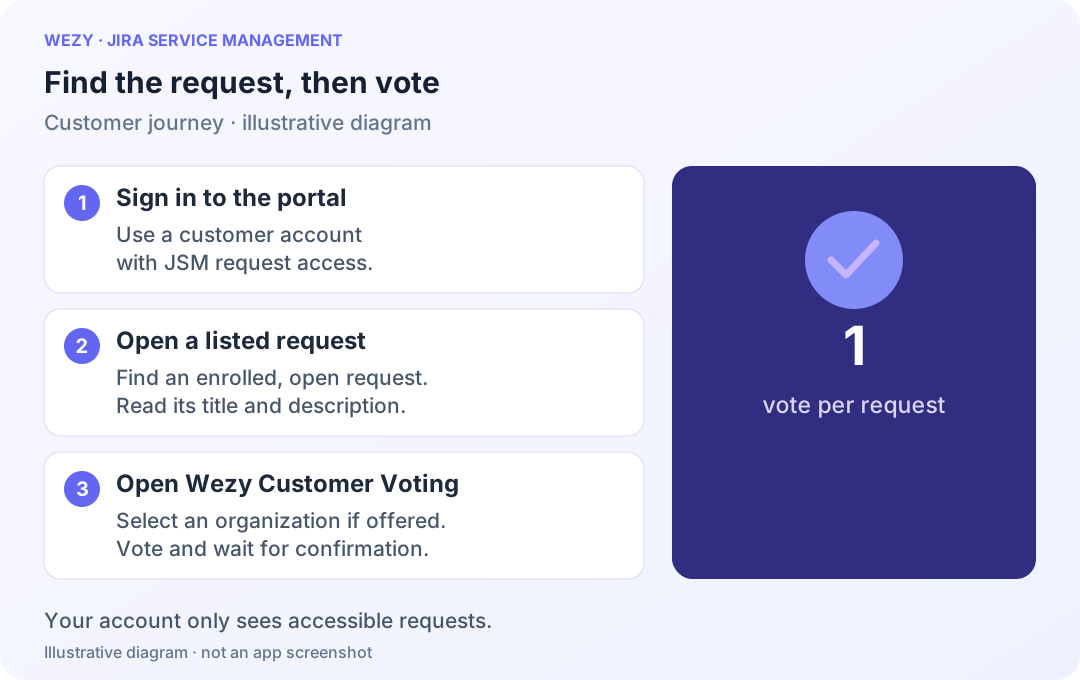
Open a request title, read it and locate Wezy Customer Voting.
Step 2 — Choose an organization if offered, then vote
Choose an eligible organization or leave No organization attribution. Select vote (Vote for this request) once and wait for the response.
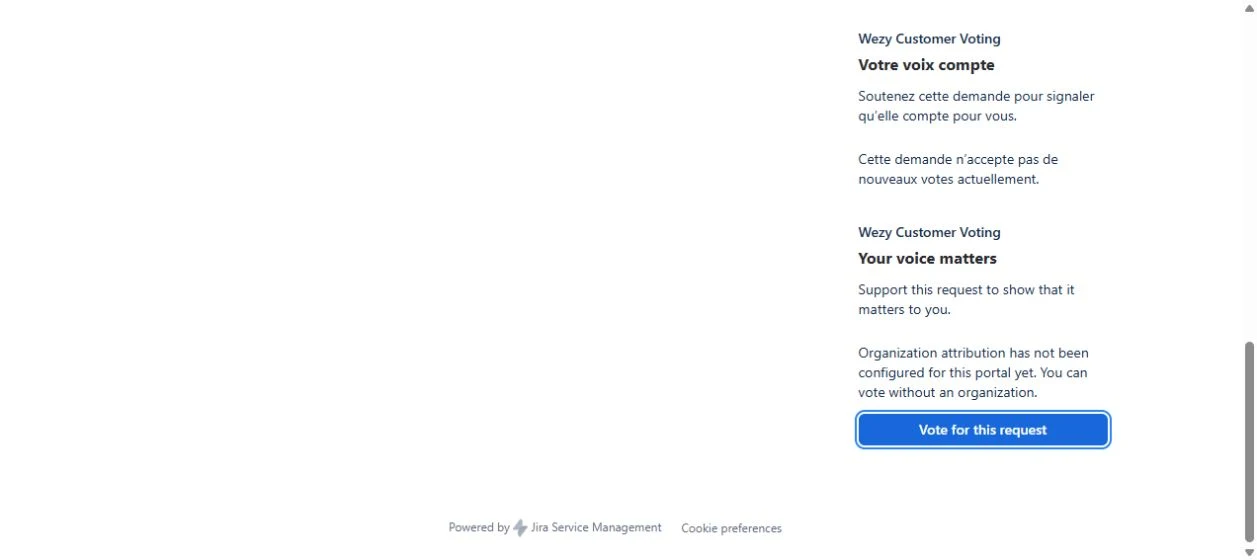
Step 3 — Check confirmation
Look for Your choice has been saved. Thank you for your feedback and You support this request. This confirms the saved choice. A customer can support several requests, with one active vote per account per request.
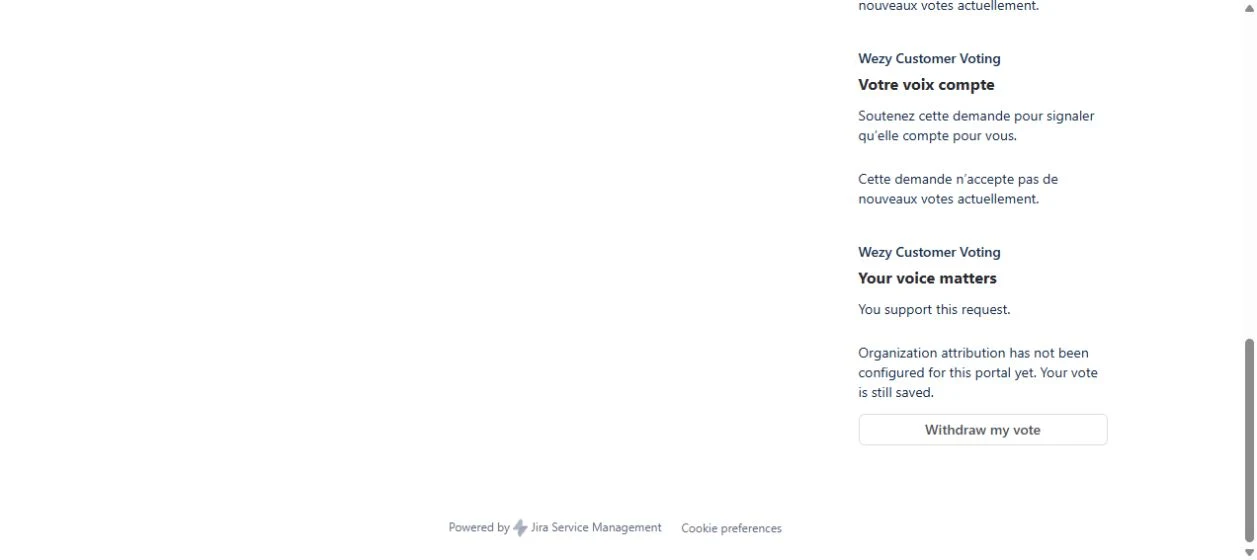
Step 4 — Withdraw or change your choice
Choose withdraw (Withdraw my vote) to stop supporting the request and wait for confirmation. Changing an organization does not add a second vote.
An error alone does not establish whether a vote was saved. Use Confirm my choice again when offered to confirm a pending action. After session expiry or a concurrent change, read the updated state before confirming. If new votes are suspended, follow the panel’s message or contact the project team.
8. Attribute a vote to an organization
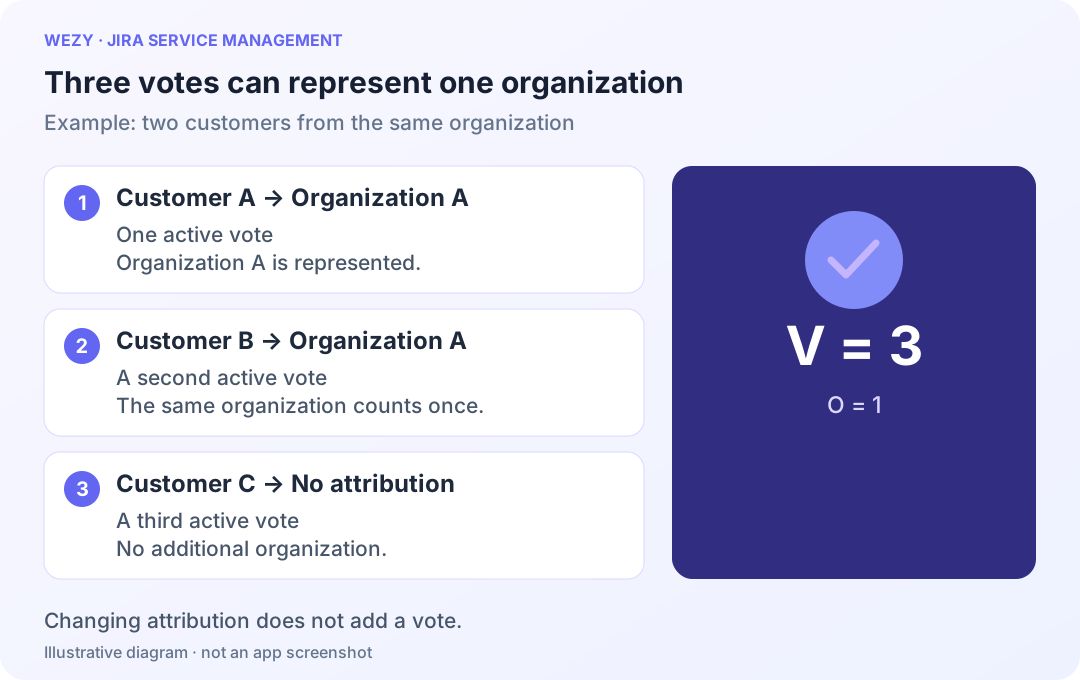
Attribution identifies the organization whose need you are expressing. It is optional. An unattributed vote contributes to V but does not represent an organization in O or W.
- Select an eligible organization: membership, service desk association and Wezy project allowance are required.
- For an active vote, save a changed selector with Save organization.
- To remove attribution while keeping your vote, select No organization attribution and save.
If organization reading is temporarily unavailable, voting without attribution can remain possible when the panel permits it. A saved vote remains saved; use Retry organizations when offered.
Example: two customers voting on behalf of one organization count as two votes and one distinct organization. A third unattributed vote brings V to three while O stays at one. Attribution never changes request access.
9. Compare customer demand in the agent dashboard
Step 1 — Read a request’s metrics
Open Wezy Customer Demand on the Jira request. Review its metrics and represented organizations available to your role. Expand Understand the score for the formula breakdown, Advanced score preview for an available preview, and Compare periods for historical comparisons.
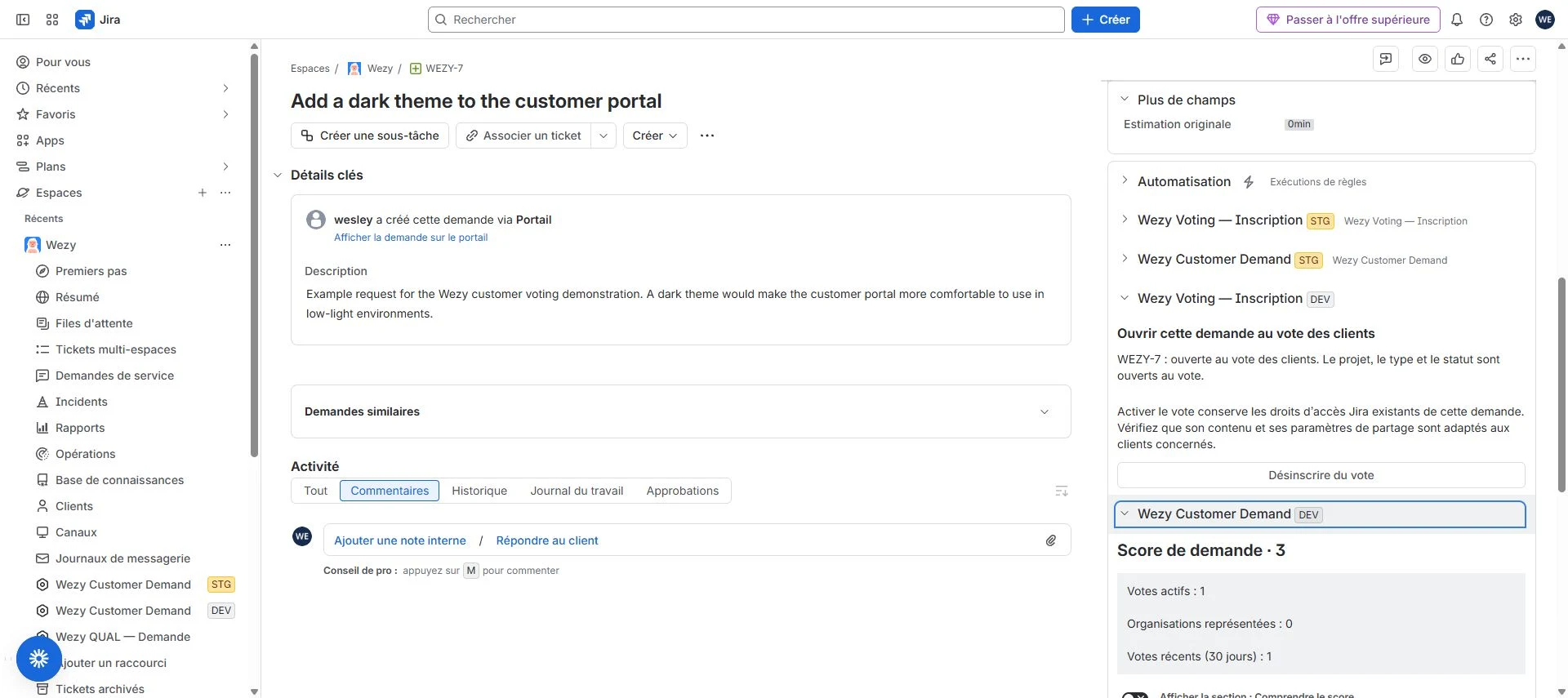
Step 2 — Open the project ranking and apply filters
Open the project page Wezy Customer Demand. Select type and status, open More filters for minimum votes or score and available organization/segment filters, and choose a descending sort by score, votes, organizations or recent votes. Apply with Apply filters.
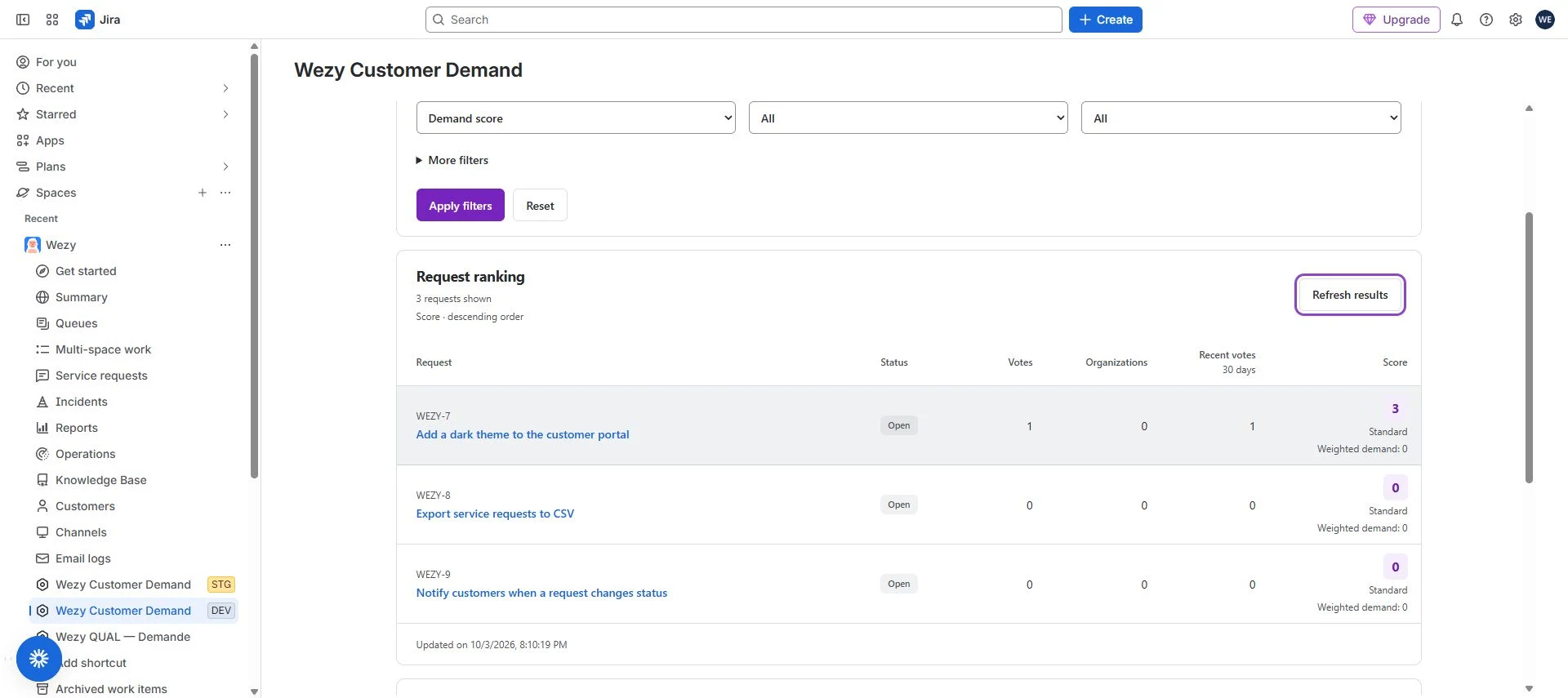
Step 3 — Review and continue
Compare metrics, open titles for context and use Show more requests for the next page. Refresh with Refresh results. Advanced adds available organization and segment filters for a particular audience.
An empty ranking does not establish that no demand exists across the site. Check restrictive filters, project selection, enrollment and permissions. Retry an unavailable read instead of interpreting it as zero votes. Compare results with known rules and scoring, alongside your team’s other constraints.
10. Understand the demand score
| Metric | Meaning |
|---|---|
| V · Customer Votes | Currently active votes. |
| O · Organizations Requesting | Distinct organizations represented by active votes. |
| R30 · Votes Last 30 Days | Active votes first activated within the last 30 days. |
| W · Weighted Organization Demand | Sum of represented organization weights, each counted once. Advanced metric. |
| S · Demand Score | Active formula's result. Not a percentage or a score capped at 100. |
Standard formula
S = V + 3 × O + 2 × R30
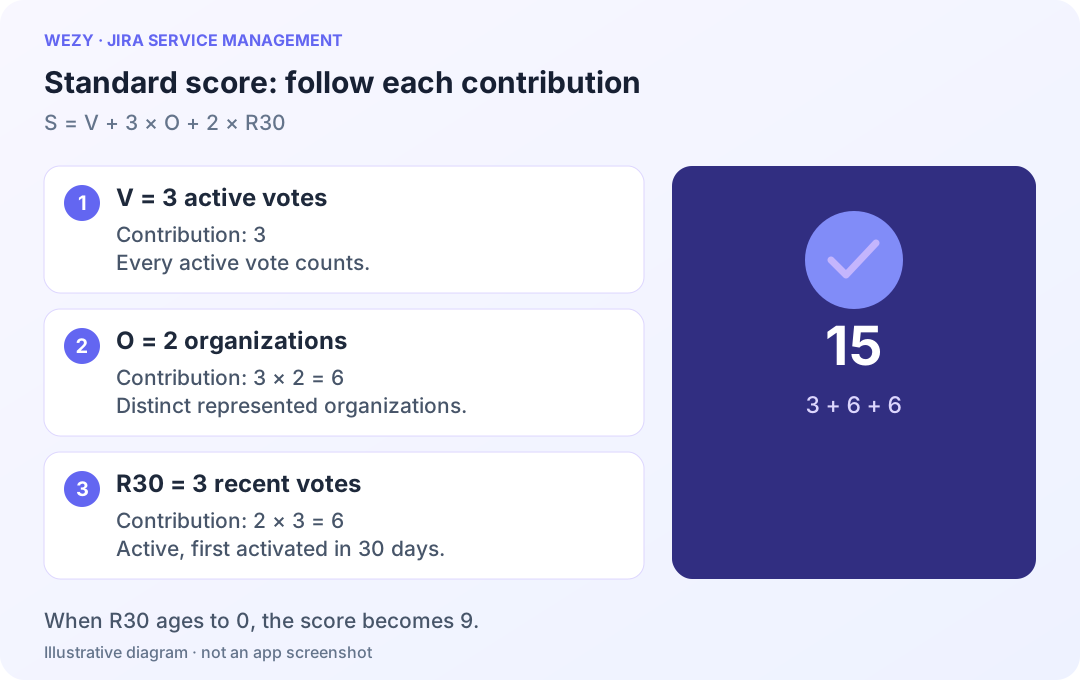
Three active votes, two represented organizations and three recent votes give 3 + 3 × 2 + 2 × 3 = 15. If all remain active but age out of the 30-day window, R30 becomes zero and the score becomes 9, without a withdrawal.
R30 counts eligible active votes, not clicks or every action in the month. Withdrawal and reactivation do not restart the retained first-activation date.
Advanced formula
S = a × V + b × O + c × W + d × R30
With a = 1, b = 3, c = 2, d = 2 and two organizations weighted 1 and 2, W is 3. The same example gives 3 + 6 + 6 + 6 = 21. When R30 becomes zero, the score becomes 15.
Several votes from one organization increase V, but its weight is counted once in W. An organization without a segment or individual override uses the default weight of 1.
Check the active formula. An Advanced license and saved settings can coexist with Standard scoring until Advanced is explicitly activated.
11. Configure Advanced scoring and segmentation
Project administration and an active Advanced edition are required. Open Wezy Customer Voting → Advanced scoring and check Current scoring.
Step 1 — Set the importance of each signal
Under Importance of each signal, set Active votes (a), Organizations represented (b), Weighted demand (c) and Recent votes (30 days) (d). Each signal is multiplied by this importance before being added to the score.
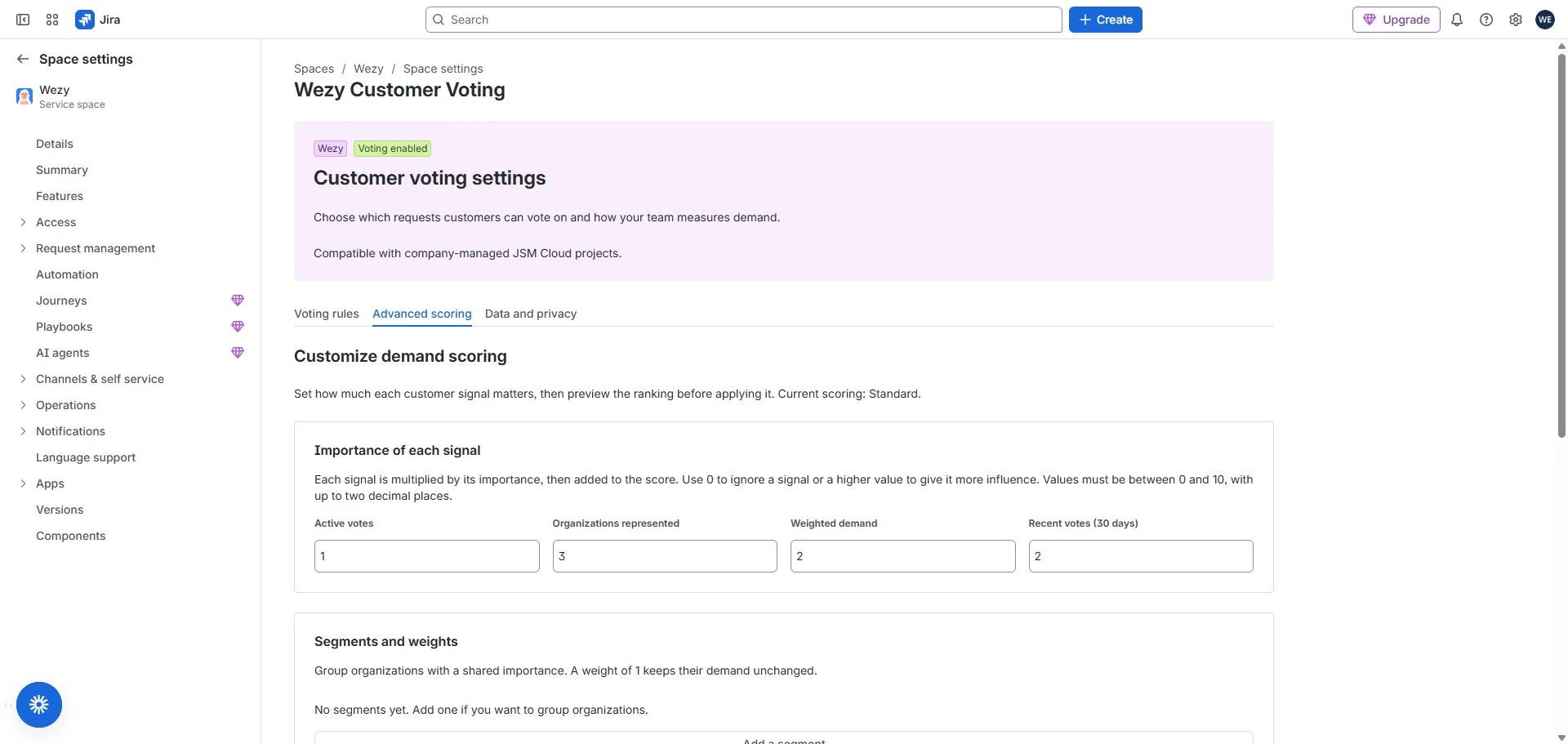
Step 2 — Create segments and assign weights
Under Segments and weights, choose Add a segment, provide a clear name and set its weight. In Project organizations, assign organizations to segments. An individual weight overrides the segment’s weight; leave it empty to inherit.
Coefficients and weights accept 0 to 10, with at most two decimal places. Zero removes weighted contribution, but does not remove a vote or the organization from O. Weights do not grant access.
For example, create a “Strategic customers” segment weighted 2 and a “Regular customers” segment weighted 1. An organization can have an individual override of 3. Use a rule your team understands and test its effect before activation.
Step 3 — Save, preview and explicitly activate
Choose Save Advanced settings, then Preview saved ranking. Preview and activation require saved settings; switching tabs does not save the draft. Compare contributions on known requests. The preview may show only the first accessible requests. When satisfied, select Activate Advanced formula and reread the panel and dashboard to confirm the active formula.
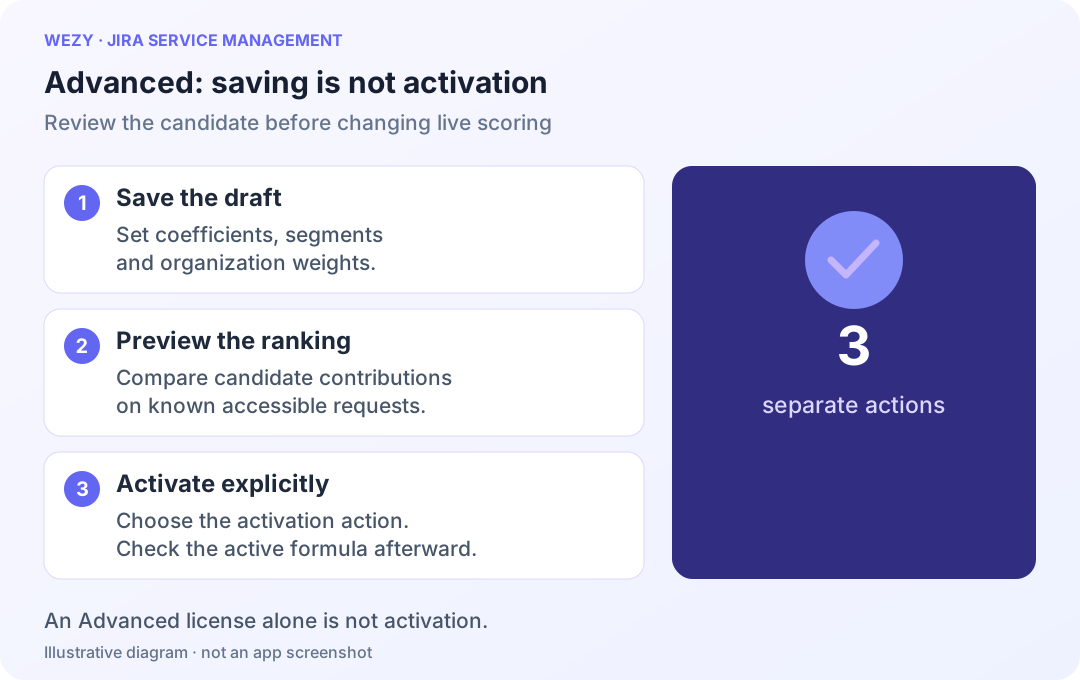
Use Return to Standard score to restore the fixed formula. Changes are versioned and dated. Record when rules change so rankings and historical comparisons remain interpretable.
12. Read history and trends
- Inspect the demand panel’s available historical coverage.
- Select a supported window: Standard offers 7 and 30 days; Advanced adds 90 days and covered period comparisons.
- Check covered UTC dates before interpreting change.
- For comparisons, use complete covered UTC days offered by the interface.
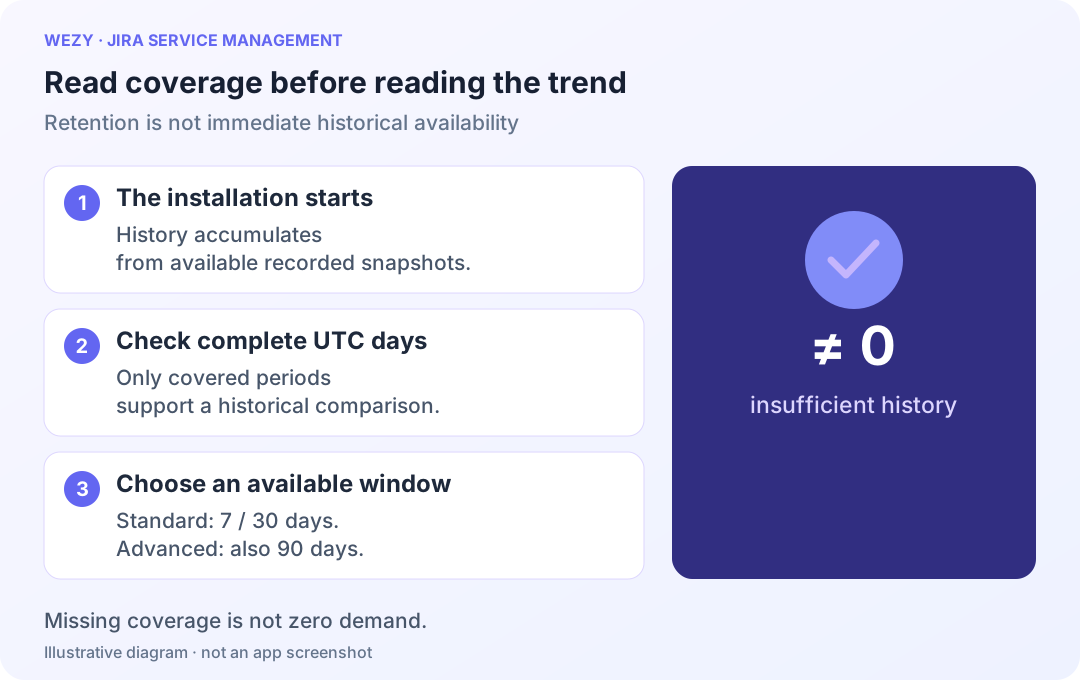
Standard retains snapshots for 90 days; Advanced for 365 days. A new installation needs to accumulate history. Insufficient history means the period is not fully covered; it is not a zero. Variation from a zero baseline may be non-calculable.
Historical calculations retain their original formula context. Changing weights today does not mean past results used that rule. Exported organization names reflect currently observed names, not certified historical names. UTC days can differ from your team’s local calendar days.
Changing editions
Upgrading does not recreate purged snapshots or automatically activate Advanced scoring. A confirmed downgrade restores Standard scoring, blocks new Advanced outputs and makes W non-applicable.
The policy allows 30 days for recovery before snapshots beyond Standard’s 90-day retention are purged. Check the state and effective date in Data and privacy → Edition and retention. Advanced configurations remain disabled under the retention policy. An undetermined license does not by itself trigger destructive handling.
13. Use Jira fields, JQL and Automation
Wezy manages five read-only numeric fields:
- Wezy Customer Votes;
- Wezy Organizations Requesting;
- Wezy Votes Last 30 Days;
- Wezy Demand Score;
- Wezy Weighted Organization Demand.
The first four are shared across editions. Weighted demand is non-applicable in Standard; do not interpret it as an organization with zero weight.
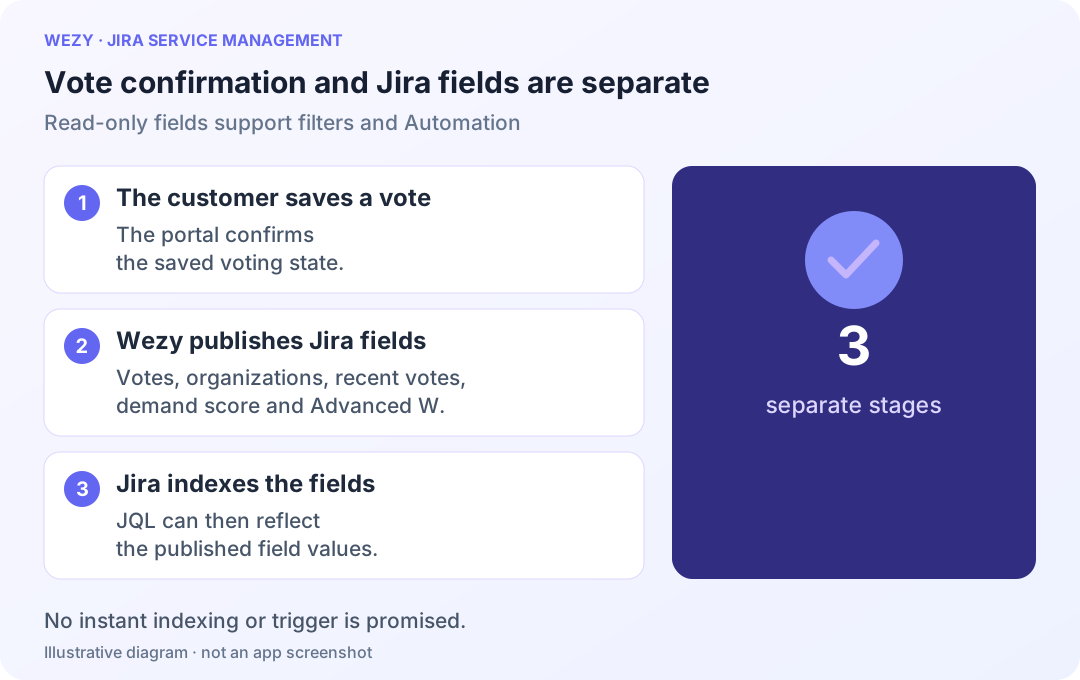
Build a JQL filter
An administrator finds Wezy field IDs in your site’s Jira field administration. Replace these placeholders before using the example:
project = YOUR_PROJECT
AND cf[ID_CUSTOMER_VOTES] >= 3
ORDER BY cf[ID_DEMAND_SCORE] DESCYOUR_PROJECT, ID_CUSTOMER_VOTES and ID_DEMAND_SCORE are placeholders, not identifiers supplied by Wezy. Test against a known request after field publication and Jira indexing converge.
Prepare an Automation rule
Choose a specific goal, such as detecting requests above a vote threshold. Use Wezy fields with a trigger appropriate to your Jira version and configuration. Test on a demonstration request, review the rule log and prevent actions creating a loop of changes.
Vote confirmation, field publication and JQL indexing are separate stages. This guide promises no instant trigger, publication deadline or number of Automation executions. Do not manually edit app-managed fields.
14. Export demand data and recover administrative data
Step 1 — Select requests and optional historical dates
Apply dashboard filters and review the requests. Export requests prepares a CSV scoped to those filters and your permissions.
Advanced can include a covered historical comparison. Expand Add a historical comparison. Enter First day (UTC) and Last day (UTC), or leave both empty. Only complete UTC days covered by history are available.
Step 2 — Prepare, then save the CSV
Choose Prepare CSV and wait. When ready, choose Save CSV to save the received file. Check edition, filters, period and row count before interpreting it.
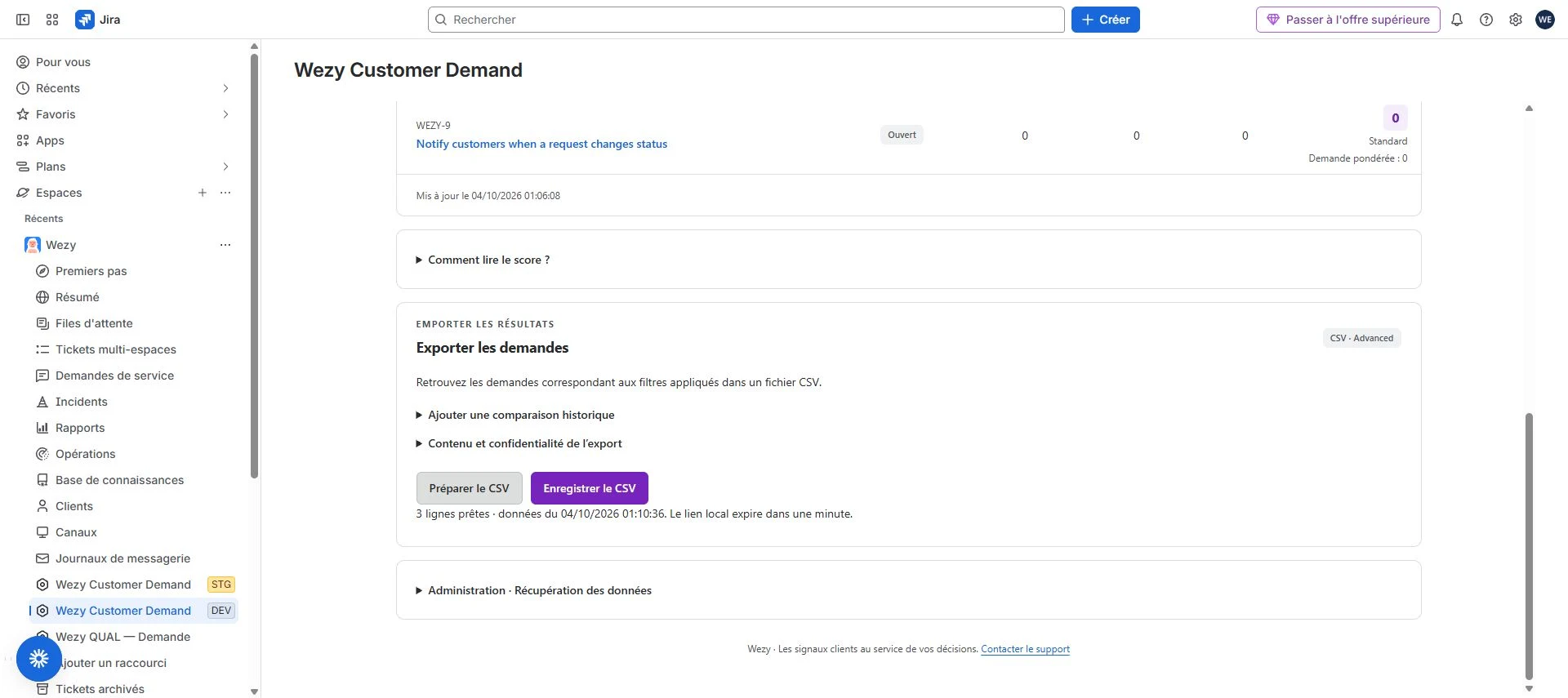
If the local link expires, prepare again. Permissions and licensing are checked at delivery. Wezy cannot remotely revoke a copy already received or saved on your computer.
Administrative recovery — Receive every JSONL batch
Administration · Data recovery is separate from analytical CSV exports. It requires authorized project administration and can be available without an active commercial license.
Expand Administration · Data recovery in the dashboard. Choose Receive first batch, save with Save JSONL batch, then repeat Receive next batch until completion. Keep all batches and manifest metadata.
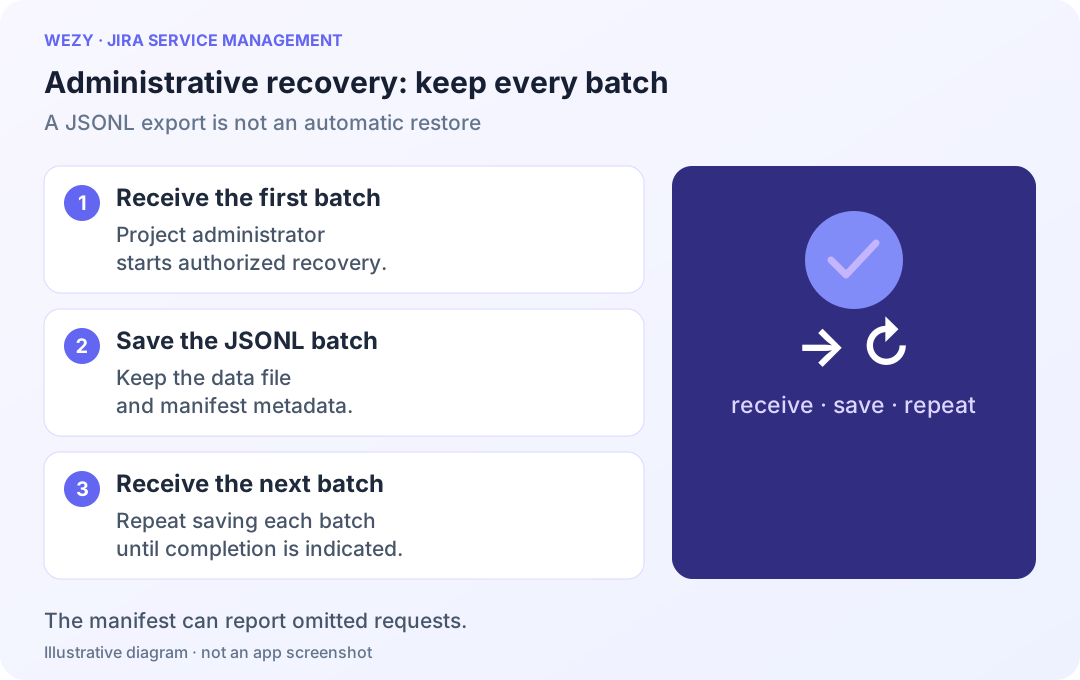
Inaccessible requests can be omitted and reported in the manifest; this is not an export of the entire Jira site. Files can include Atlassian identifiers, vote states, attributions and settings. Store securely. An export is not an automatic restore or a reimport procedure for a different installation.
15. Understand privacy and data erasure
Enrollment, attribution and exports are separate from JSM sharing. Wezy views remain subject to the current account’s permissions.
For authorized erasure, open settings → Data and privacy → Erase Wezy data:
- Select the request, organization or account target permitted by your role.
- Enter the exact identifier. A display name may not be that identifier.
- Run the preliminary target check offered by the interface.
- Review the target and warning. Choose Start erasure only for the intended operation.
- Follow its state; completion can require several maintenance passes.
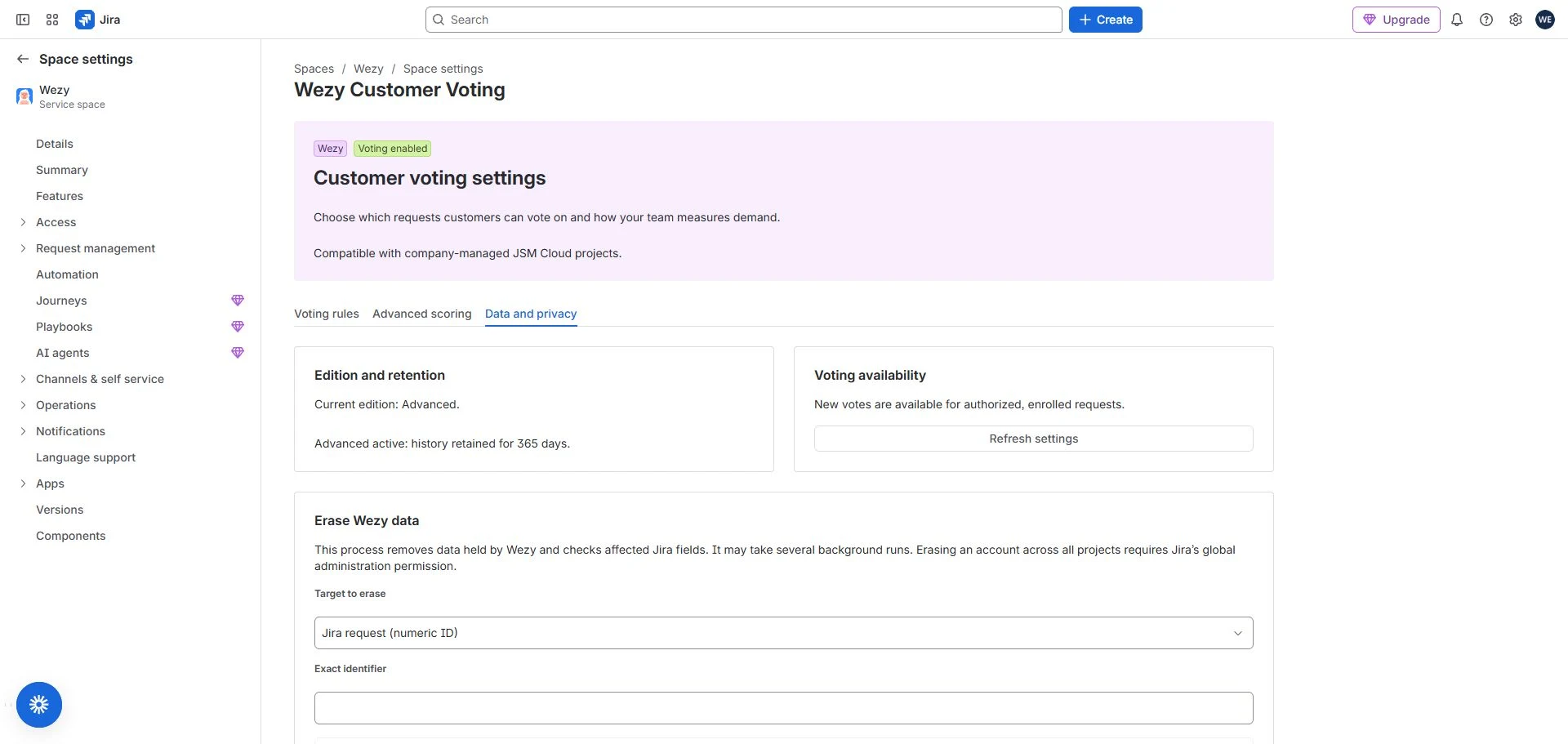
Erasure is irreversible. It removes Wezy-held data and checks affected Jira fields; it does not delete the Jira request. Affected views and exports can be blocked during processing. Cross-project account erasure requires global Jira administration.
Withdraw to change your support; remove enrollment to close current voting; use authorized erasure to delete Wezy data within the permitted scope. See the privacy policy and support privacy information.
16. Suspension, maintenance and uninstalling
When a write is suspended
A suspension can protect an installation during privacy processing or while a capacity check needs review. It does not prove a Jira request was deleted. New writes can be refused; the interface explains available actions.
The administrator opens Data and privacy → Voting availability, reads the message and uses Refresh settings to reread availability. Refreshing does not itself lift a suspension. Contact support with the exact message if voting remains unavailable; test-environment diagnostic tools are not part of this customer journey.
Capacity controls concern technical capacity. This guide does not announce unlimited requests or voters. Avoid uninstalling to resolve a suspension.
Before uninstalling
Decide whether recovery is needed and save required files before removal. Uninstall through Atlassian app management and separately check subscription status.
Reinstallation does not automatically restore the former installation. Hosted retention and recovery depend on the applicable Atlassian lifecycle; no guaranteed recovery is stated here.
17. Troubleshooting and frequently asked questions
Why is a request missing from the portal?
Check the customer's JSM access, project voting, allowed type and status, and explicit enrollment. Refresh and inspect subsequent pages. Enrollment does not add sharing.
Why can a customer read a request but not vote?
Check the supported customer account, open voting and write suspension state. Completed requests can retain content and history without accepting new votes. Read the message before clicking again.
Why is an organization missing from the selector?
Check membership, service desk association, project allowance and JSM reading authorization. Retry temporary failures using the offered button. Unattributed voting can remain possible when the panel permits it.
Can an agent account test customer voting?
The documented journey uses an authenticated customer account with request access. Agents use Jira panels and the dashboard; their account is not a substitute for testing customer access.
How do I know whether my vote was saved after an error?
Read the current state and confirmation. If “Confirm my choice again” appears, confirm the pending action. After session expiry or a concurrent change, read the refreshed state. A connection error alone proves neither acceptance nor rejection.
Why do votes and organizations have different totals?
V counts active votes; O counts distinct represented organizations. Several customers can represent one organization, and some votes have no attribution. The totals need not be equal.
Why did the score fall without a withdrawal?
A vote can age out of R30's 30-day window while remaining active. Also check the active formula, weights, settings version and calculation time. The score is not an immutable total.
Why is Advanced unavailable or scoring still Standard?
Check effective edition and project administration permission. Saving settings or upgrading does not activate weighted scoring. Read the active profile and explicitly activate Advanced after previewing when intended.
Why is the dashboard empty or incomplete?
Remove restrictive filters, check project and permissions, then refresh. Rankings are paginated and limited to accessible requests. Retry unavailable reads instead of interpreting them as no votes.
Why is a Jira field or JQL result behind the vote panel?
Verify site field IDs and allow publication and indexing to converge. Check maintenance state. Do not manually change app-managed fields or create an Automation loop to force refreshes.
What does insufficient history mean?
Check installation date, covered UTC dates and retention. An uncovered period is not zero. Upgrading does not recreate purged snapshots.
What if the CSV fails or its link expires?
Prepare again and check permissions and edition. Advanced comparisons require both dates and a covered period. Wait for preparation before saving.
Does closing voting delete a request or its data?
No. Removing enrollment closes current voting. Withdrawal changes one customer's support. Erasure is separate administration of Wezy data and does not delete the Jira request.
18. Contact Wezy support
Open Jira Service Management support for the external messenger or email wesy@wezy.app.
Messages are checked during the day; technical investigations and fixes take place in the evening, Paris time. Submit at any time. No guaranteed response or resolution time is announced.
Include version, displayed edition, account role, affected screen, steps, expected and observed result, time and timezone, and exact error message or code. A sanitized screenshot can help.
Do not initially send passwords, API tokens, secrets, a full personal-data export or private request content. External support does not automatically receive Jira context, votes or Atlassian identifiers. Read support privacy information before sending attachments.